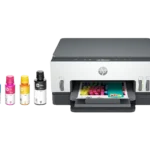
Common Printer Problems and How to Troubleshoot Them
Introduction
A printer that suddenly stops working can interrupt your day, especially when you need an important document, assignment, or business report.
Fortunately, many common printer problems have straightforward causes, such as connection issues, incorrect settings, low supplies, or paper feeding errors.
This guide from Print Soft Tech covers common printer issues and basic troubleshooting steps to help you identify possible solutions.
1. Printer Is Showing as Offline
A printer may appear offline when your computer cannot communicate with it or when the printer’s status is incorrectly detected.
What to check:
- Confirm that the printer is powered on and ready.
- Check the USB cable or wireless network connection.
- Make sure your computer is using the correct printer.
- Review the print queue for paused or stalled jobs.
- Restart the printer and, if necessary, the computer.
For network printers, verify that the computer and printer are connected to the appropriate network.
2. Printer Is Not Printing
If a print job does not produce a page, start with the basics.
Possible solutions:
- Check for error messages on the printer display.
- Confirm that paper is loaded correctly.
- Check ink or toner levels.
- Verify that the correct printer is selected.
- Review the print queue for stuck jobs.
- Check whether the printer requires attention, such as clearing a jam or closing a cover.
If the problem continues, consult the printer manufacturer’s troubleshooting instructions for your model.
3. Printer Is Producing Blank Pages
Blank pages may result from empty supplies, blocked inkjet nozzles, incorrect settings, or other device-specific problems.
Try these steps:
- Check ink or toner levels.
- Confirm that the cartridge or toner unit is installed correctly.
- Review the document preview to ensure it contains printable content.
- For inkjet printers, use the manufacturer’s recommended printhead check or cleaning procedure if appropriate.
- For laser printers, follow the manufacturer’s instructions for checking the toner and imaging components.
Avoid repeatedly running cleaning cycles without checking the results, as some procedures consume ink.
4. Poor Print Quality or Streaks
Faded text, missing colours, streaks, and uneven images can have several causes.
Troubleshooting tips:
- Check ink or toner levels.
- Confirm that the correct paper type is selected.
- Print a test or diagnostic page.
- Follow the manufacturer’s recommended printhead or print-quality maintenance steps.
- Check whether the issue appears in every document or only one file.
If the issue persists, the printer may require further maintenance or professional service.
5. Paper Jams
Paper jams can occur when paper is loaded incorrectly, the wrong paper type is used, or the feed mechanism encounters an obstruction.
How to respond safely:
- Follow the manufacturer’s instructions for clearing a jam.
- Turn off the printer if instructed to do so.
- Open only the access panels specified in the user manual.
- Remove paper gently in the recommended direction.
- Check for torn paper fragments.
- Reload suitable paper and ensure the paper guides are positioned correctly.
Never force paper out or touch hot internal components. Laser printers may contain areas that remain hot after operation.
6. Printer Is Not Connecting to Wi-Fi
Wireless printing problems can result from network changes, incorrect credentials, weak signals, or incompatible connection settings.
What to try:
- Confirm that the printer’s wireless function is enabled.
- Check that the correct network is selected.
- Re-enter the Wi-Fi password if necessary.
- Restart the printer and router when appropriate.
- Check the manufacturer’s setup application for connection instructions.
- Confirm that the printer and device support the required network configuration.
If your router has recently been replaced, the printer may need to be connected to the new network.
7. Slow Printing
Slow printing can be caused by high-quality settings, large graphics, complex documents, network congestion, or device limitations.
Ways to investigate:
- Select a standard or draft quality setting for routine documents.
- Check whether the document contains large images or complex graphics.
- Compare wired and wireless printing if both are supported.
- Review the printer’s stated speed and the conditions under which it is measured.
- Check for available driver or firmware updates through the manufacturer.
Remember that advertised pages-per-minute figures may differ from real-world results.
8. Printer Is Not Recognizing Ink or Toner
A printer may display a supply error if a cartridge is incompatible, incorrectly installed, or not detected.
Try the following:
- Confirm that the supply is compatible with your exact printer model.
- Check that all packaging materials have been removed as directed.
- Follow the manufacturer’s installation instructions.
- Check for supply-related error messages.
- Consult official guidance before cleaning contacts or replacing components.
Do not force cartridges into place or attempt procedures that are not approved for your device.
When Should You Contact Technical Support?
Basic troubleshooting may resolve many common issues, but some problems require professional assistance.
Contact the manufacturer or an authorized service provider if you encounter repeated mechanical failures, persistent error codes, electrical problems, unusual noises, or issues that continue after following the official troubleshooting steps.
Always consult your printer’s manual and warranty terms before attempting repairs.
Conclusion
Printer problems can often be traced to connectivity, settings, paper handling, supplies, or routine maintenance. Checking these areas systematically can help you identify the cause and avoid unnecessary frustration.
For model-specific instructions, always use the official manufacturer’s documentation.
Print Soft Tech helps you understand printer technologies, explore buying guides, and find practical information for a smoother printing experience.